Servers in stock
 Checking availability...
50% off 1st month on Instant Servers - code 50OFF +1-718-873-9104
Configure server
FileZilla FTP • File upload tutorial

Upload Files Through FTP with FileZilla

Follow this step-by-step guide to upload files to your Primcast web hosting or media streaming server using FileZilla, a free and reliable FTP client.

4-step guide FileZilla FTP 24/7 live support

Step-by-step guide

Follow each step carefully to connect to your Primcast FTP server and upload your files using FileZilla.

1

Install and launch FileZilla

FTP is used to upload files to your Primcast web hosting or media streaming server. If you do not already have an FTP client, download the free FileZilla software and install it. Once installed, run FileZilla and the main application window will appear.
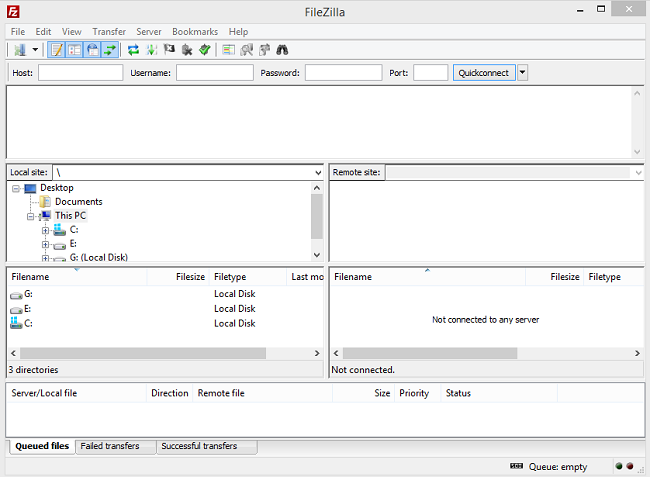
FileZilla - Main application window Expand
2

Enter your Primcast FTP server details

In the top bar of the FileZilla window, enter your server connection details. Your FTP login information is available in your Primcast control panel at primcast.com. Fill in the Host, Username, and Password fields using your account credentials.

FileZilla - Enter FTP server host, username and password Expand
3

Connect to your FTP server

Click the Quickconnect button to connect to your Primcast FTP server. Once connected, the middle area of the FileZilla window will display two panels — your local computer files on the left and your remote server files on the right.
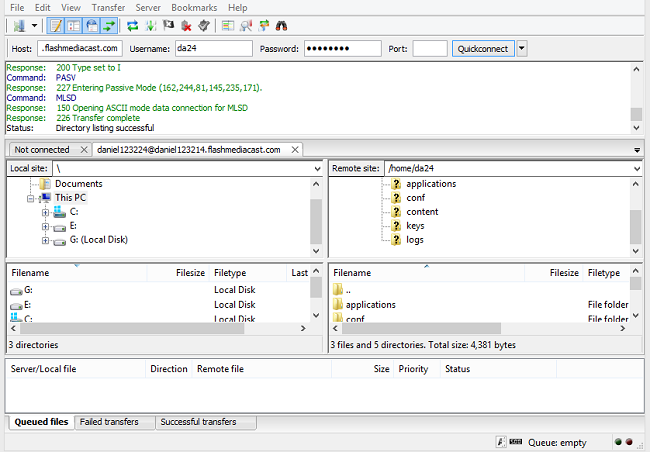
FileZilla - Local and remote file panels after connecting Expand
4

Upload your files

The left panel shows files on your local computer. Navigate to the directory containing the files you want to upload. Click and drag a file or folder to the right panel (your remote server) to upload it.

To upload multiple non-consecutive files, hold Ctrl and click each file, then drag and drop them all at once. Make sure you have navigated to the correct destination folder on the remote server before uploading.

FAQ

Common questions about uploading files via FTP to your Primcast account using FileZilla.

Where do I find my Primcast FTP login details?

Your FTP host, username, and password are available in your Primcast control panel at primcast.com. Log in and navigate to your hosting or streaming account details.

What FTP port should I use in FileZilla?

Leave the Port field blank in FileZilla to use the default FTP port (21). Only enter a port if specifically instructed to use a non-standard port by Primcast support.

How do I upload multiple files at once?

Hold the Ctrl key and click each file you want to upload to select them all, then drag and drop the selection to the remote server panel on the right.

Which folder should I upload my files to?

Navigate to the correct destination folder on the remote server before dragging files over. For web hosting, this is typically your public root directory. For media streaming, refer to the folder structure in your Primcast account details.

What should I do if FileZilla fails to connect?

Verify your host, username, and password are correct and copied exactly from your Primcast control panel. Make sure your firewall is not blocking FTP connections. Contact our support team via live chat if the issue persists.

Ready to go live?

Our audio and video streaming services include unlimited connections, unlimited bandwidth, and 24/7 expert support to keep you on air.