Servers in stock
 Checking availability...
50% off 1st month on Instant Servers - code 50OFF +1-718-873-9104
Configure server
SHOUTcast DSP • Streaming configuration tutorial

SHOUTcast DSP Encoder Streaming Configuration Tutorial

Follow this step-by-step guide to configure SHOUTcast DSP with Winamp for live audio streaming with your Primcast SHOUTcast server. Get your radio station live in minutes.

6-step guide SHOUTcast 24/7 live support

Step-by-step guide

Follow each step carefully to configure SHOUTcast DSP for live audio streaming with your Primcast server credentials.

1

Install prerequisites

The following software is required to stream with SHOUTcast DSP:

  • Winamp - Download
  • Nullsoft SHOUTcast Source DSP Plug-in for Winamp - Download
  • Windows Vista, 7, 8 or 10
  • A DSL or Cable internet connection for optimal performance

After installing both, log in to your Primcast account and click Login to Centova to access your SHOUTcast station panel.
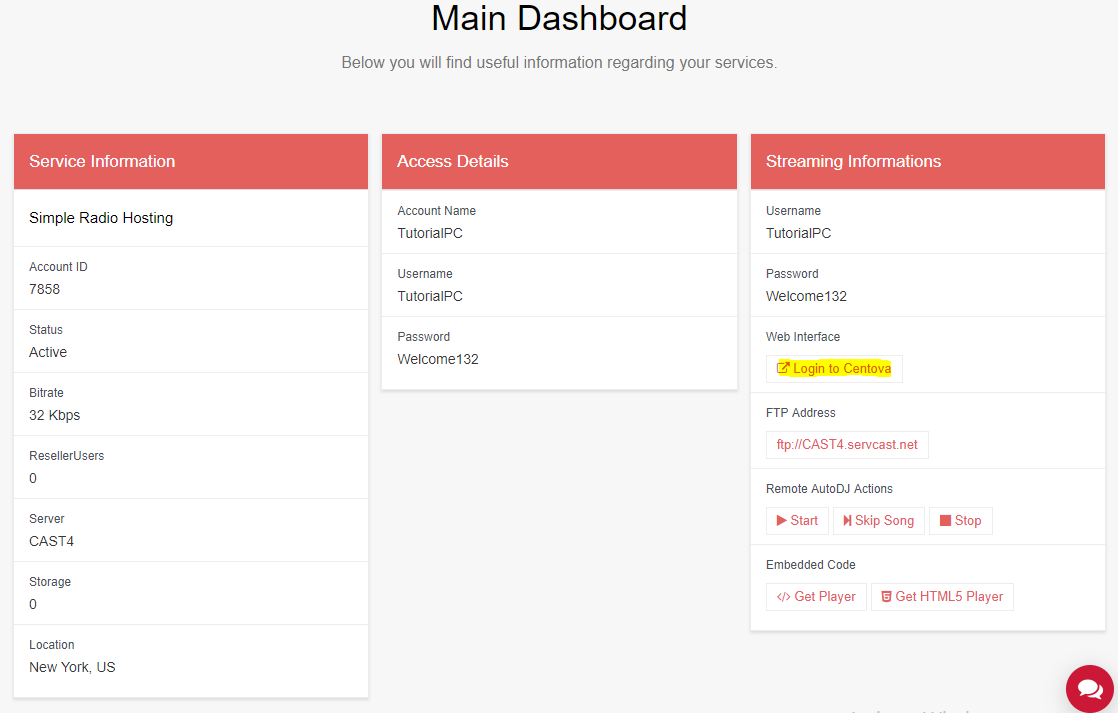
SHOUTcast DSP - Primcast login to Centova Expand
2

Get your streaming credentials

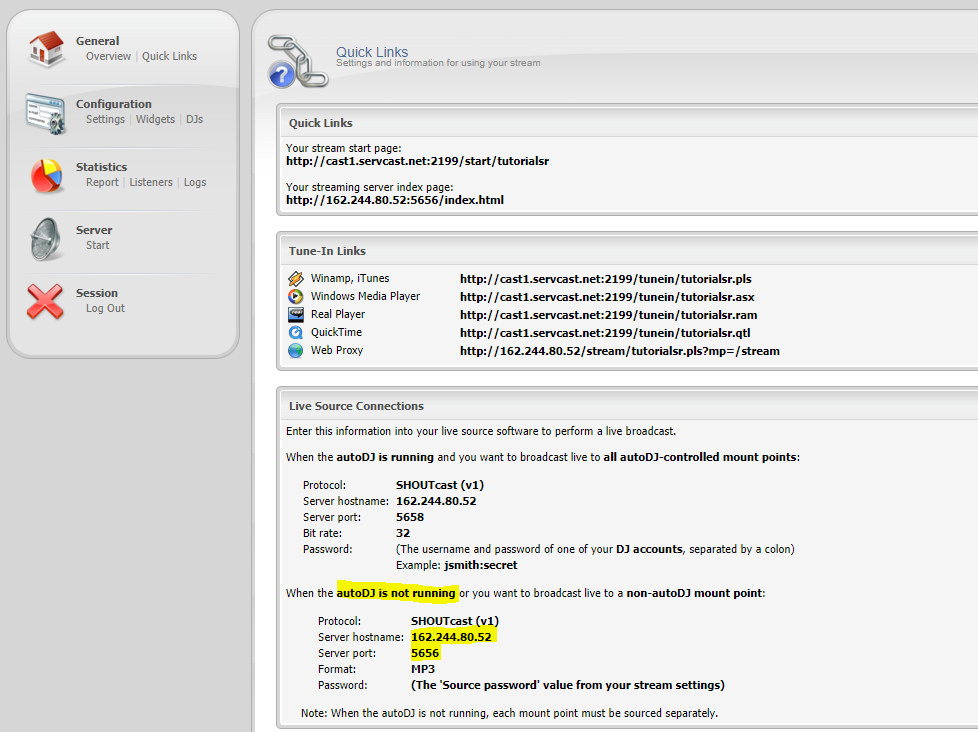
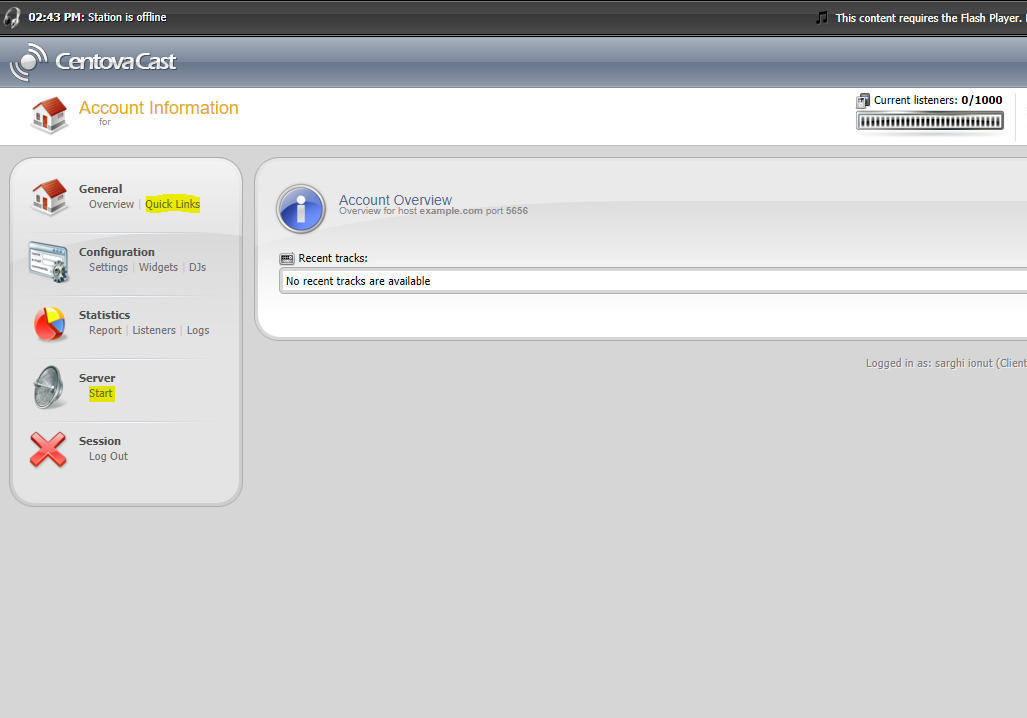
In the Centova panel, click Start from the left menu to power on your SHOUTcast station, then click Quick Links. Scroll down to Live Source Connections to find your Server Hostname and Server Port.

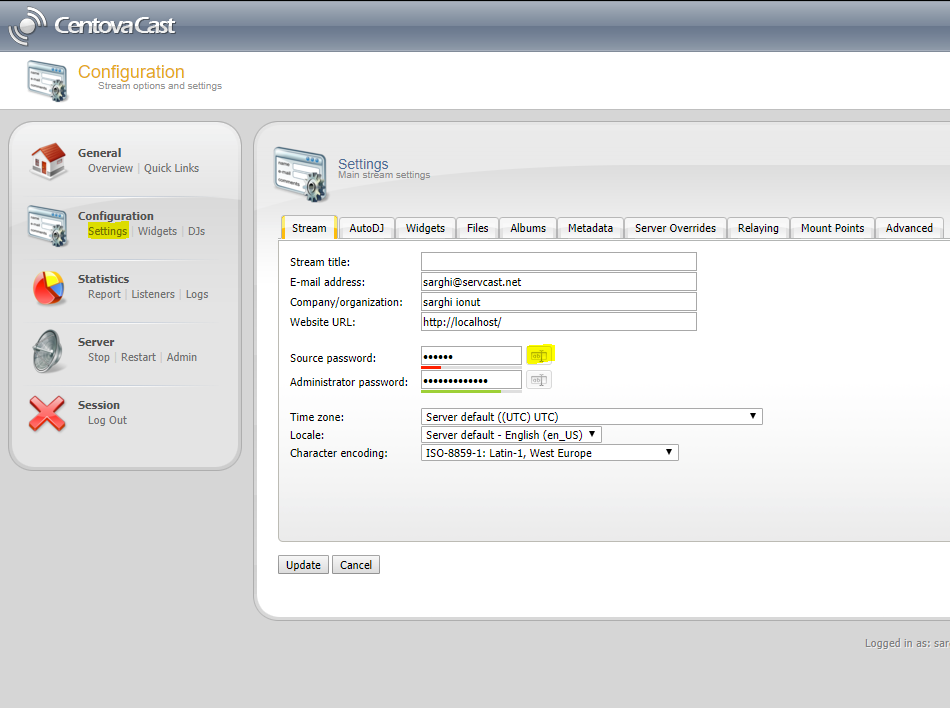
To retrieve your Streaming Password, go to the Settings section and click the reveal button next to the source password field.
SHOUTcast DSP - Centova Quick Links Expand
SHOUTcast DSP - Live Source Connections Expand
SHOUTcast DSP - Reveal source password Expand
3

Set up Winamp with SHOUTcast DSP

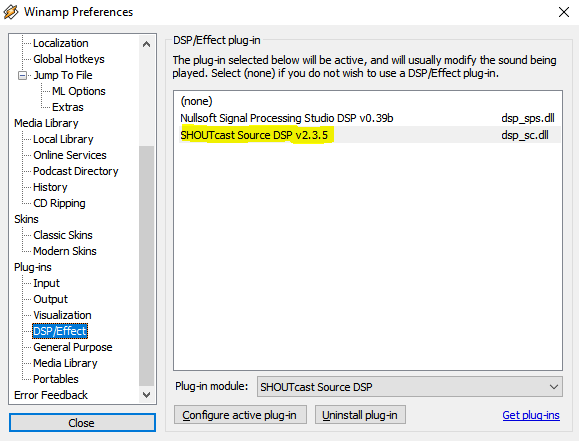
Open Winamp and press Ctrl+P to open Preferences. Go to DSP/Effect and double-click SHOUTcast Source DSP v2.3.5.

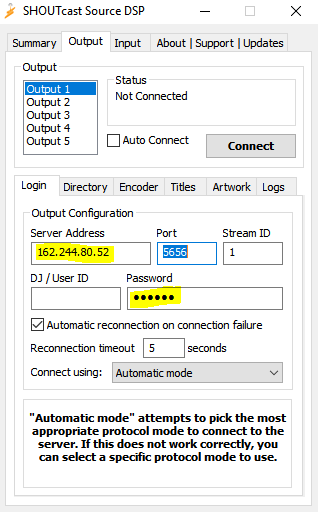
In the DSP window, enter your Server Hostname, Port, and Streaming Password (leave the Username field blank). Set Reconnection Timeout to 0 if you want automatic reconnection on disconnect.
SHOUTcast DSP - Open DSP plug-in in Winamp Expand
SHOUTcast DSP - Connection settings Expand
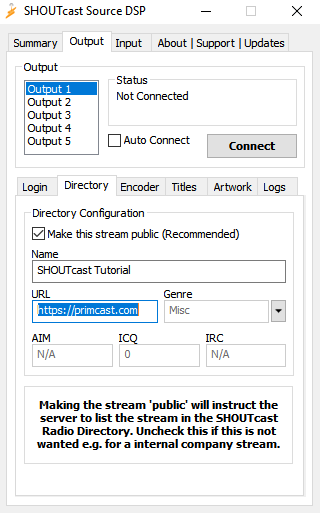
SHOUTcast DSP - Directory settings Expand
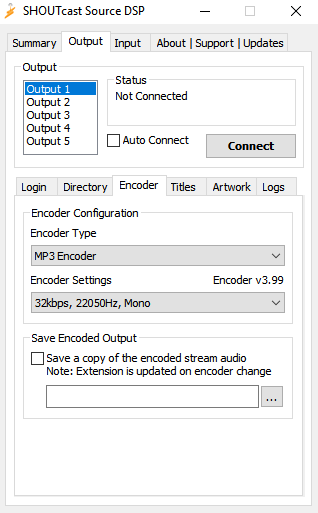
SHOUTcast DSP - Encoder bitrate settings Expand
4

Set up audio source

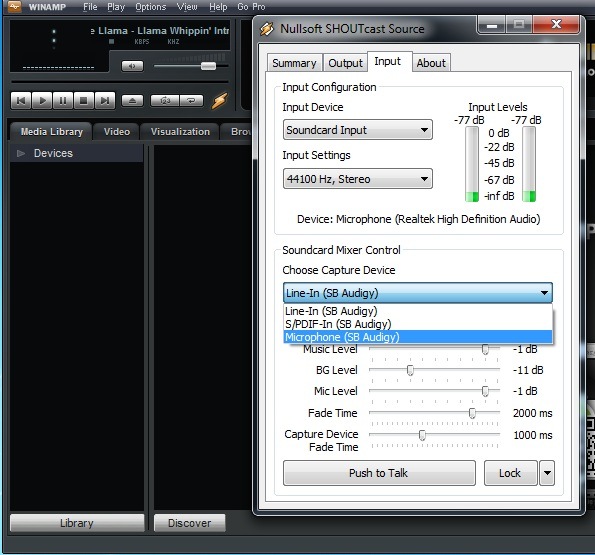
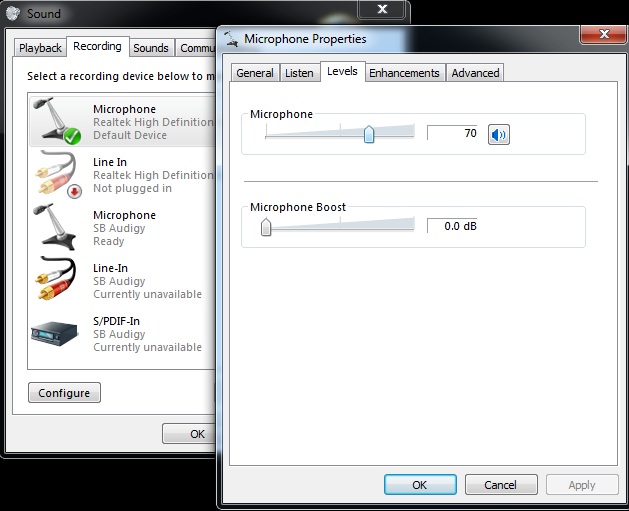
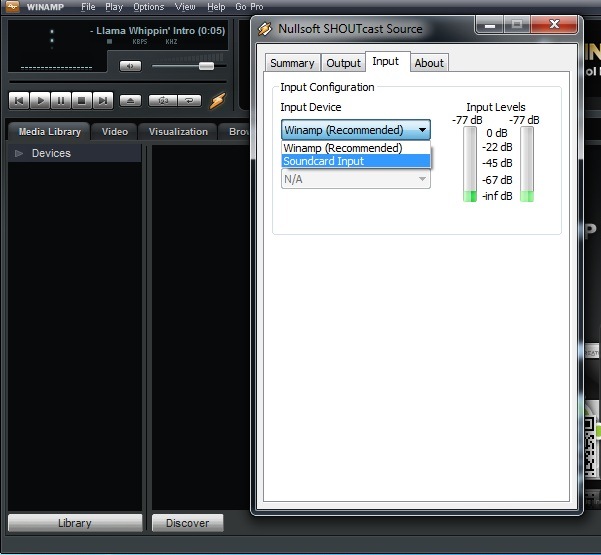
Click the Input tab in the SHOUTcast Source DSP window. The default input is Winamp, which streams whatever is playing in Winamp. For broadcasting with a microphone or mixer, select Soundcard Input and set it to 44100Hz, Stereo for best quality. Under Mic Input, select your microphone or line input and click Open Mixer to configure your soundcard recording settings.
SHOUTcast DSP - Input tab Expand
SHOUTcast DSP - Soundcard input settings Expand
SHOUTcast DSP - Mic input and mixer Expand
5

Listen to your stream

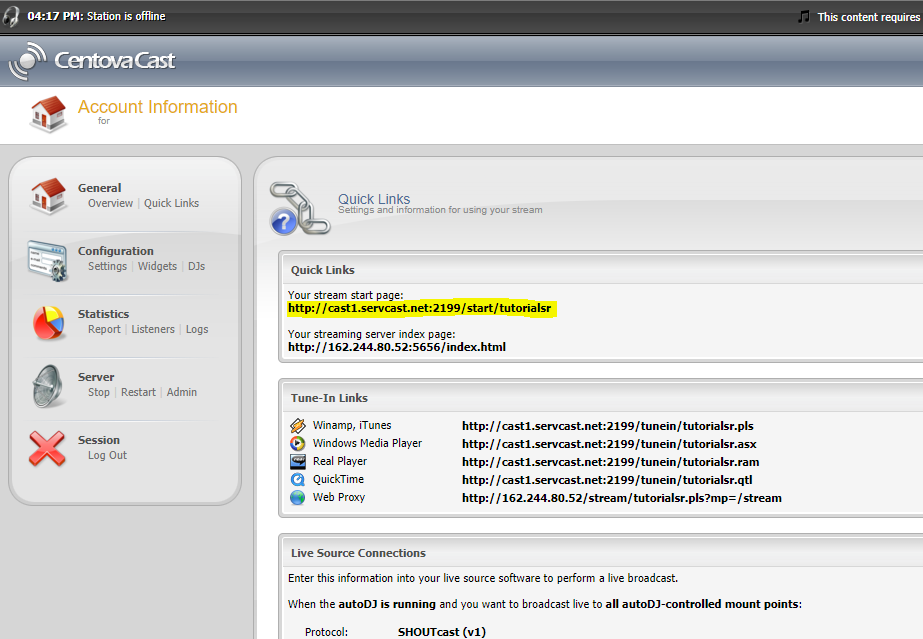
Go back to your Centova panel, access the Quick Links tab and listen to your stream from Your stream start page to verify everything is working correctly.
SHOUTcast DSP - Listen to stream Expand
6

You are live!

You are now ready to use your streaming audio server and broadcast to your listeners. Happy streaming!

FAQ

Common questions about setting up SHOUTcast DSP for live audio streaming with Primcast.

Where do I find my server hostname, port and password?

Log into your Primcast dashboard, click Login to Centova, then go to Quick Links and scroll to Live Source Connections for the hostname and port. The streaming password is found under Settings - click the reveal button next to the source password field.

What bitrate should I use for my stream?

For DSL or Cable listeners, 64 to 128 kbps is recommended. For 56k modem users, use 24 or 32 kbps. Broadcasting above 128 kbps is generally not recommended as many listeners cannot receive higher bitrates reliably.

What is the difference between Winamp input and Soundcard input?

Winamp input streams only what is playing in Winamp. Soundcard input captures all audio on your computer including your microphone, making it ideal for live DJ shows or talk radio where you need to mix multiple sources.

Can I get my station listed on the SHOUTcast directory?

Yes. In the SHOUTcast DSP Directory tab, check the "Make this server public" option and fill in your station description, URL, and genre. Your station will then appear on the SHOUTcast directory while your stream is active.

Do I need a paid Primcast plan to stream?

Yes, you need an active Primcast radio streaming plan which provides the server credentials used in this tutorial. Visit our Radio Streaming page to view available plans and get started.

Ready to go live?

Our audio and video streaming services include unlimited connections, unlimited bandwidth, and 24/7 expert support to keep you on air.