Servers in stock
 Checking availability...
50% off 1st month on Instant Servers - code 50OFF +1-718-873-9104
Configure server
Simplecast • Streaming configuration tutorial

Simplecast Encoder Streaming Configuration Tutorial

Follow this step-by-step guide to configure Simplecast for live audio streaming with your Primcast SHOUTcast or Icecast server. Get your radio station live in minutes.

3-step guide SHOUTcast & Icecast 24/7 live support

Step-by-step guide

Follow each step carefully to configure Simplecast for live audio streaming with your Primcast server credentials.

1

Set up your encoder

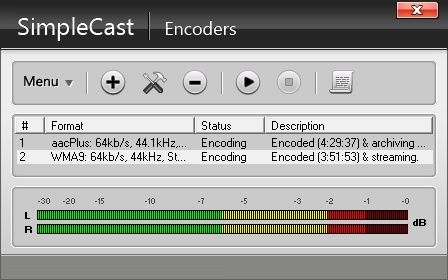
Select your encoder from the top section of the main Simplecast window. You can add and manage your encoders from here.
Simplecast - Set up encoder Expand
2

Add a SHOUTcast encoder and enter server details

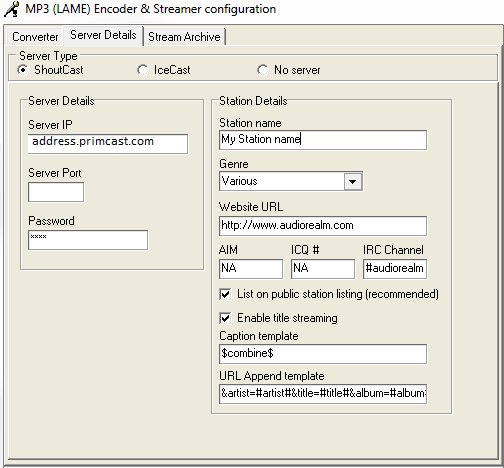
Click the + sign and select MP3 (LAME_ENC) to add a new encoder. Then in the Server Details area, enter your Primcast streaming server's IP address and password. These details are available in your Primcast account and were also included in your setup email.
Simplecast - Add MP3 encoder Expand
Simplecast - Server details Expand
3

Start streaming

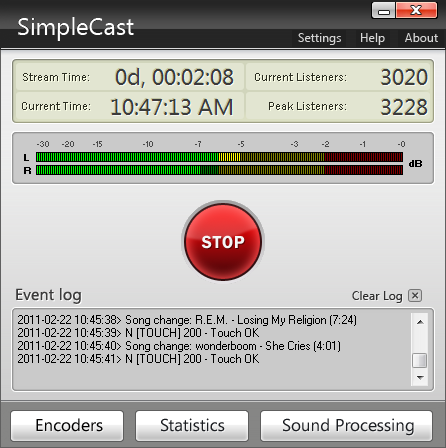
After finishing the encoder configuration, click the play button from the encoders tab to start streaming to your Primcast server.
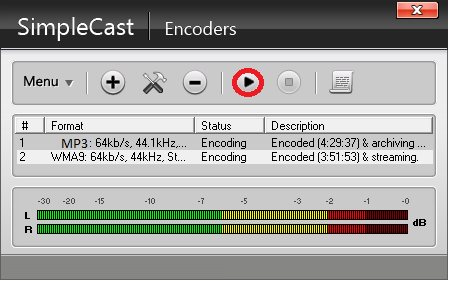
Simplecast - Start encoder Expand
Simplecast - Streaming live Expand

FAQ

Common questions about setting up Simplecast for live audio streaming with Primcast.

Where do I find my server address and password?

Log into your Primcast dashboard and open your radio server settings. Your stream hostname, port number, and source password are listed there. They were also included in your Primcast setup email. Copy them exactly into the Simplecast Server Details area.

Which encoder type should I select?

Select MP3 (LAME_ENC) for MP3 streaming, which is the most widely supported format for SHOUTcast and Icecast servers. Make sure lame_enc.dll is present in your Simplecast installation folder if prompted.

What bitrate should I use for my stream?

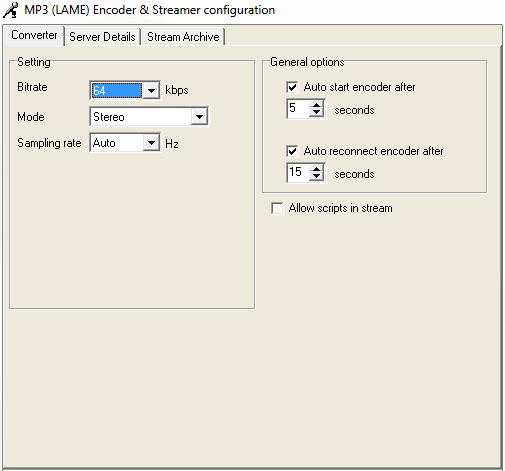
128 kbps MP3 is the most common choice and provides a good balance between audio quality and bandwidth usage. For voice-only or talk radio, 64 kbps is usually sufficient. Set the bitrate to match what your Primcast server plan supports.

My stream connects but listeners can't hear audio - what's wrong?

Check that Simplecast has the correct audio input device selected and that the volume is not muted. Also verify the encoder bitrate and format match your Primcast server settings.

Do I need a paid Primcast plan to stream?

Yes, you need an active Primcast radio streaming plan which provides the server credentials used in this tutorial. Visit our Radio Streaming page to view available plans and get started.

Ready to go live?

Our audio and video streaming services include unlimited connections, unlimited bandwidth, and 24/7 expert support to keep you on air.