Follow this step-by-step guide to configure CasterX for live audio streaming with your Primcast SHOUTcast or Icecast server. Get your radio station live in minutes.
Follow each step carefully to configure CasterX for live audio streaming with your Primcast server credentials.
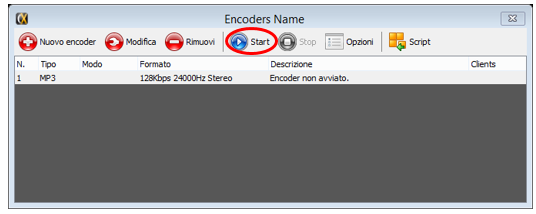
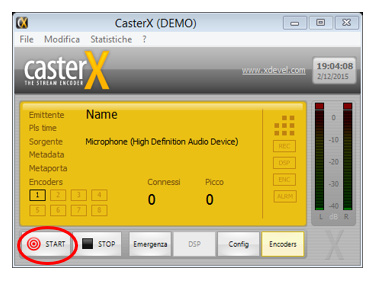
From the bottom right side of CasterX, click on Encoders to open the encoder management panel.
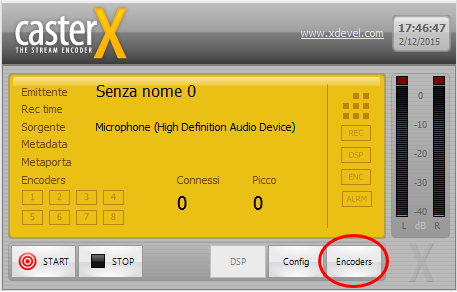 Expand
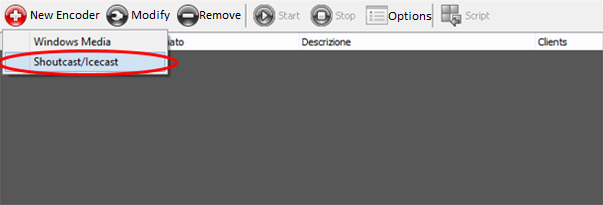
In the window that opens, click Nouvo Encoder and select your streaming type - SHOUTcast or Icecast - depending on your Primcast server.
 Expand
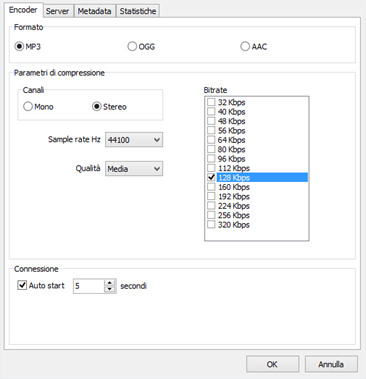
After selecting your stream type, a new window will appear showing the encoder properties. Set your audio format, channel, and bitrate according to your needs.
 Expand
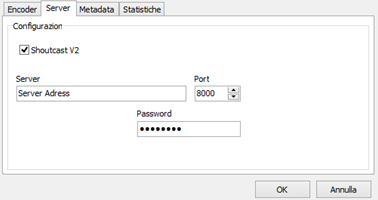
Click on the Server tab and enter your server address, port number, and streaming password. These details are available in your Primcast setup email and in your dashboard when you log in.
 Expand
Go to the MetaData tab and fill in your station information such as station name, genre, and website address. This information is not mandatory but is recommended for better exposure to listeners.
With all fields completed, click Start in the encoders window, then click Start again in the main window to begin streaming to your listeners.
 Expand
 Expand
Common questions about setting up CasterX for live audio streaming with Primcast.


